Configuration Panel Overview

The agent configuration panel is organized into logical sections that control different aspects of your agent’s behavior and capabilities.

Main Configuration Sections


Models Tab

Select and configure the AI technologies powering your agent.

Model (LLM)

Choose the language model for reasoning. Providers:
  • Azure OpenAI
  • OpenAI
  • Anthropic
  • Groq
Features:
  • Model selection with EU-hosting badges
  • Temperature control
Learn more about AI Models →

Voice

Select how your agent sounds. Providers:
  • ElevenLabs
  • Azure
  • Cartesia
Features:
  • Voice library with previews
  • Voice configuration (varies by provider)
Learn more about Voice Selection →

Transcriber

Configure transcriber. Providers:
  • Deepgram
  • Azure Speech
Features:
  • Language selection and multilingual support
  • Keyword boosting
Learn more about Transcription →

Sound Effects

Add ambient audio to conversations.
  • Background ambience (office, café, street)
Learn more about Ambient Sound →

Abilities Tab

Configure what your agent can do and how it behaves in conversations.

Instructions (System Prompt)

Define your agent’s personality, knowledge, and conversational flow.
  • Jinja-aware editor with syntax highlighting
  • Variable insertion
  • Prompt templates and writing tips
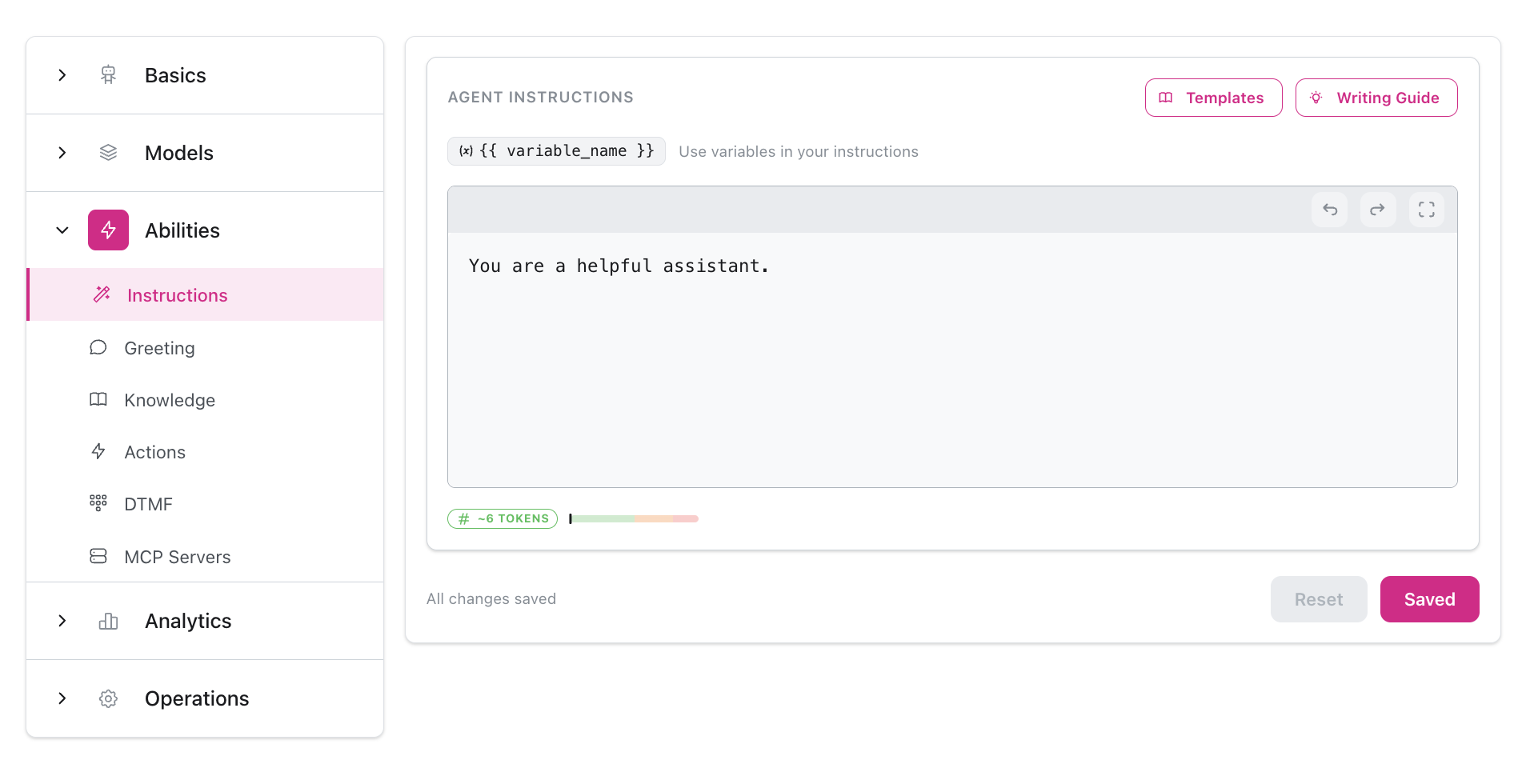
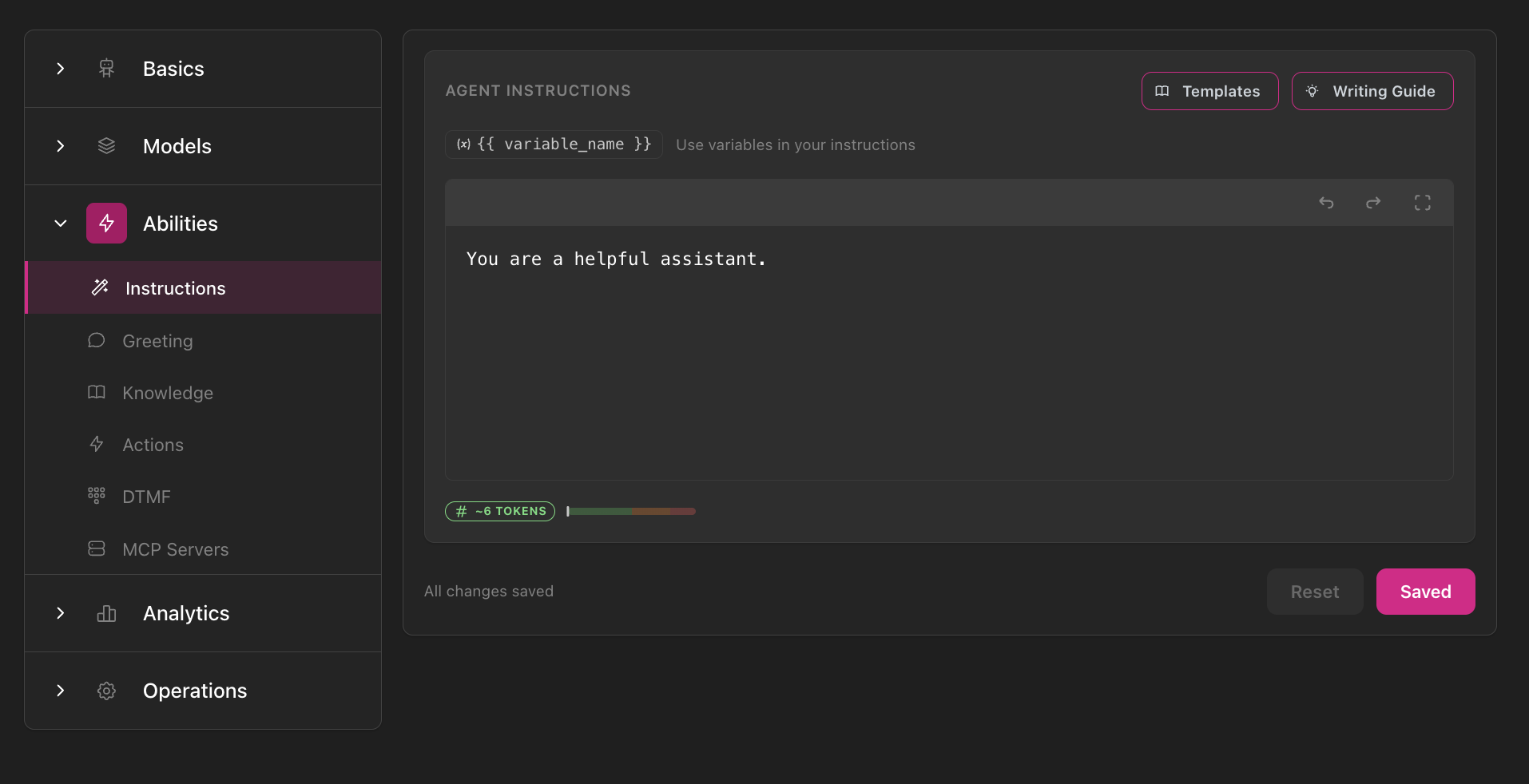
Instructions editor in Abilities section showing navigation sidebar, text editor with Templates and Writing Guide buttons, variable helper, token counter, and save controls
Learn more about Instructions →

Greeting

Control how conversations start.
  • User initiates, AI-generated, or fixed greeting
  • Inbound vs outbound greeting overrides
  • Interruptibility and delay settings
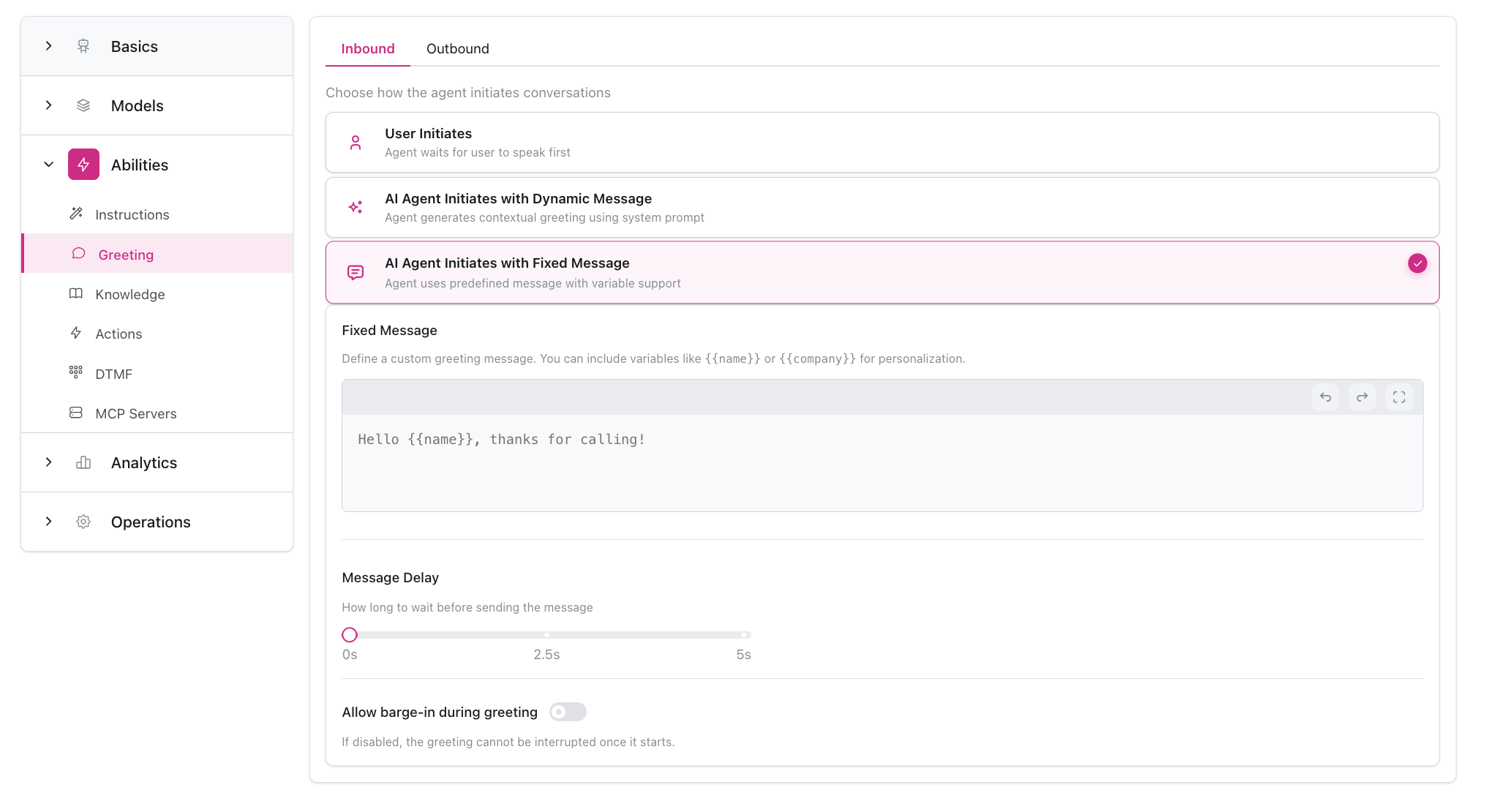
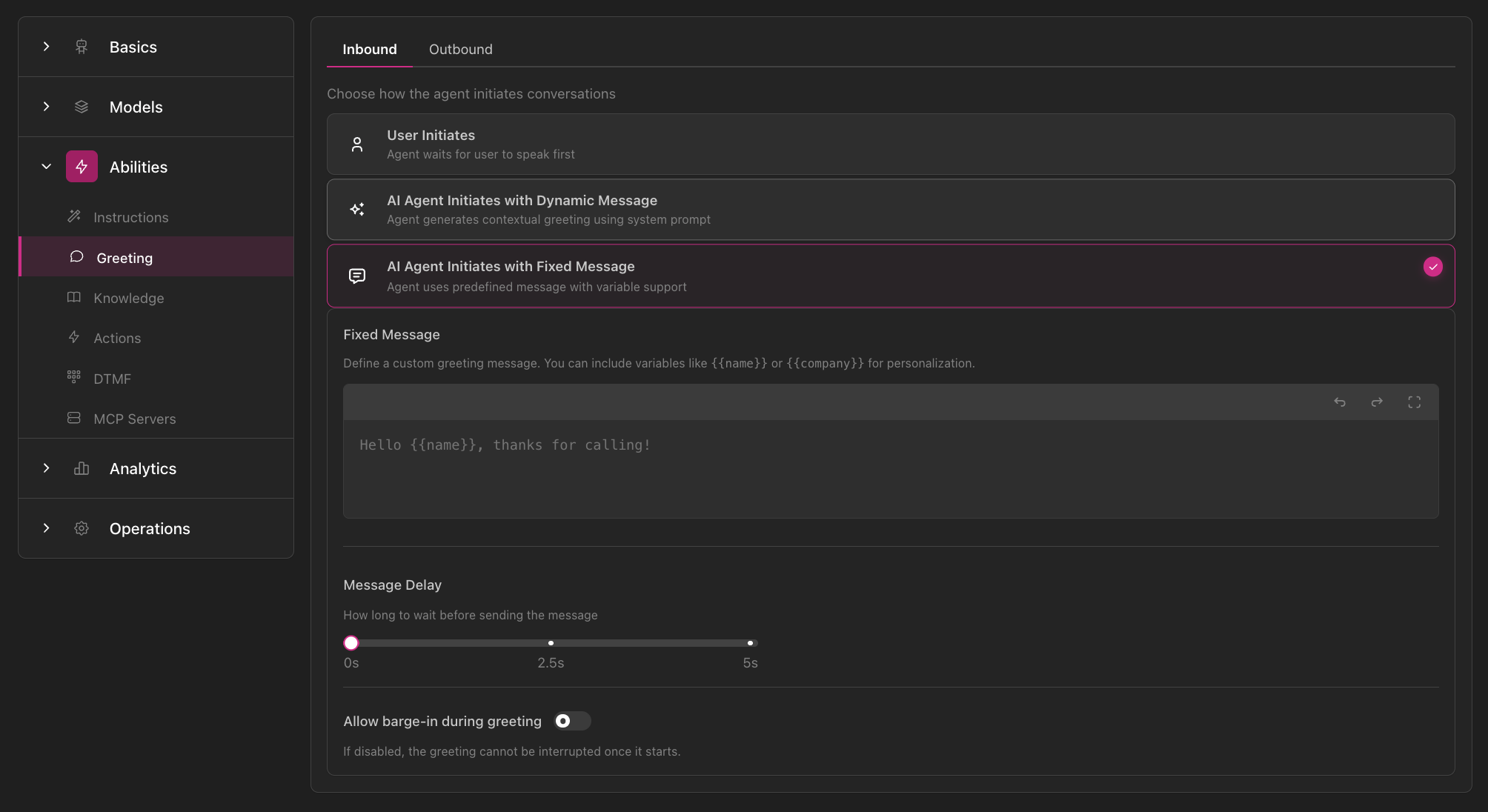
Greeting configuration showing Inbound/Outbound tabs, three greeting options (User Initiates, AI Agent with Dynamic Message, AI Agent with Fixed Message), message editor, delay slider, and barge-in toggle
Learn more about Greetings →

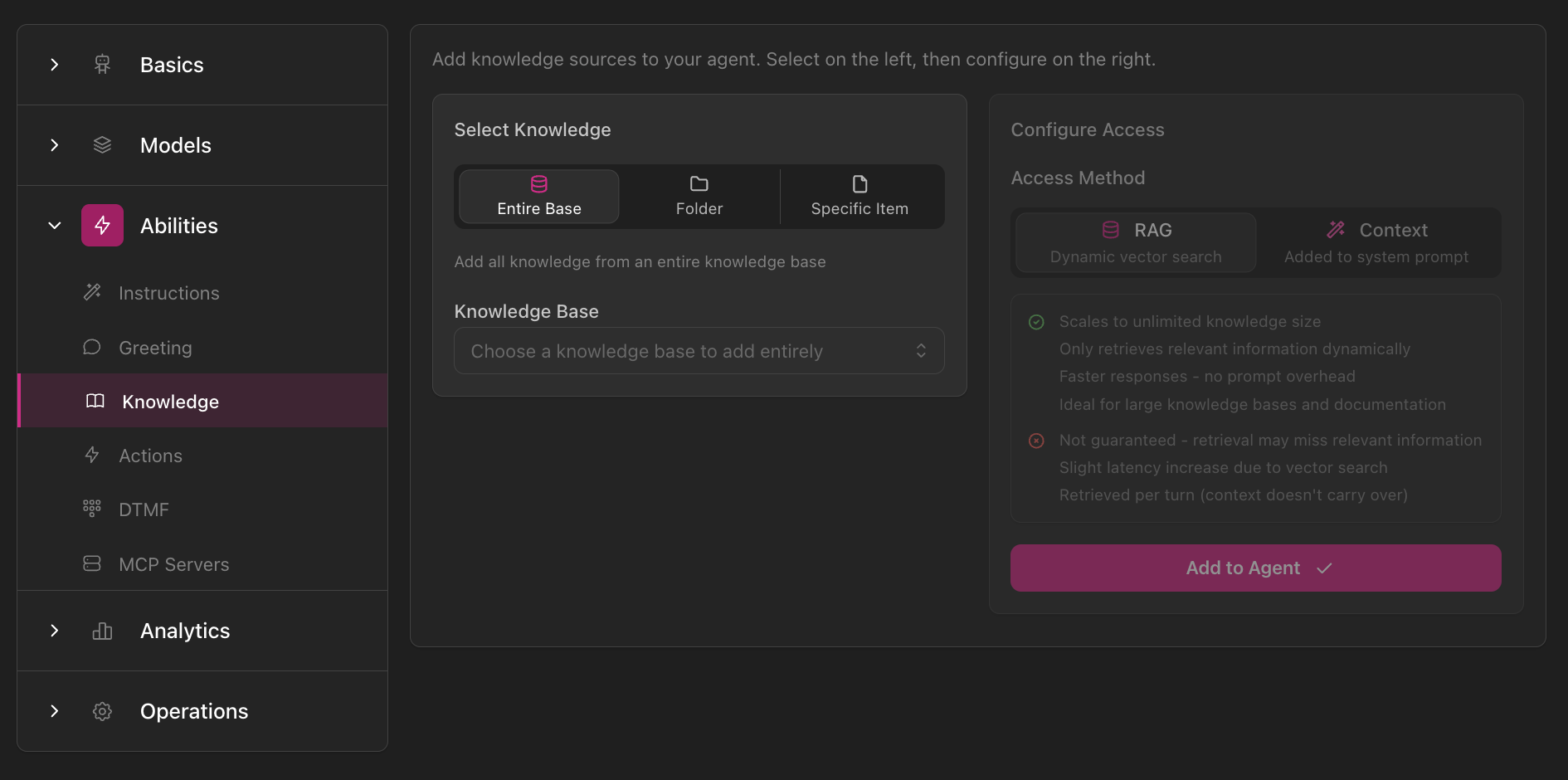
Knowledge Access

Connect knowledge bases, collections, and documents.
  • Attach multiple knowledge sources
  • Choose Context or RAG mode per source
  • Support for multiple file types and website scraping
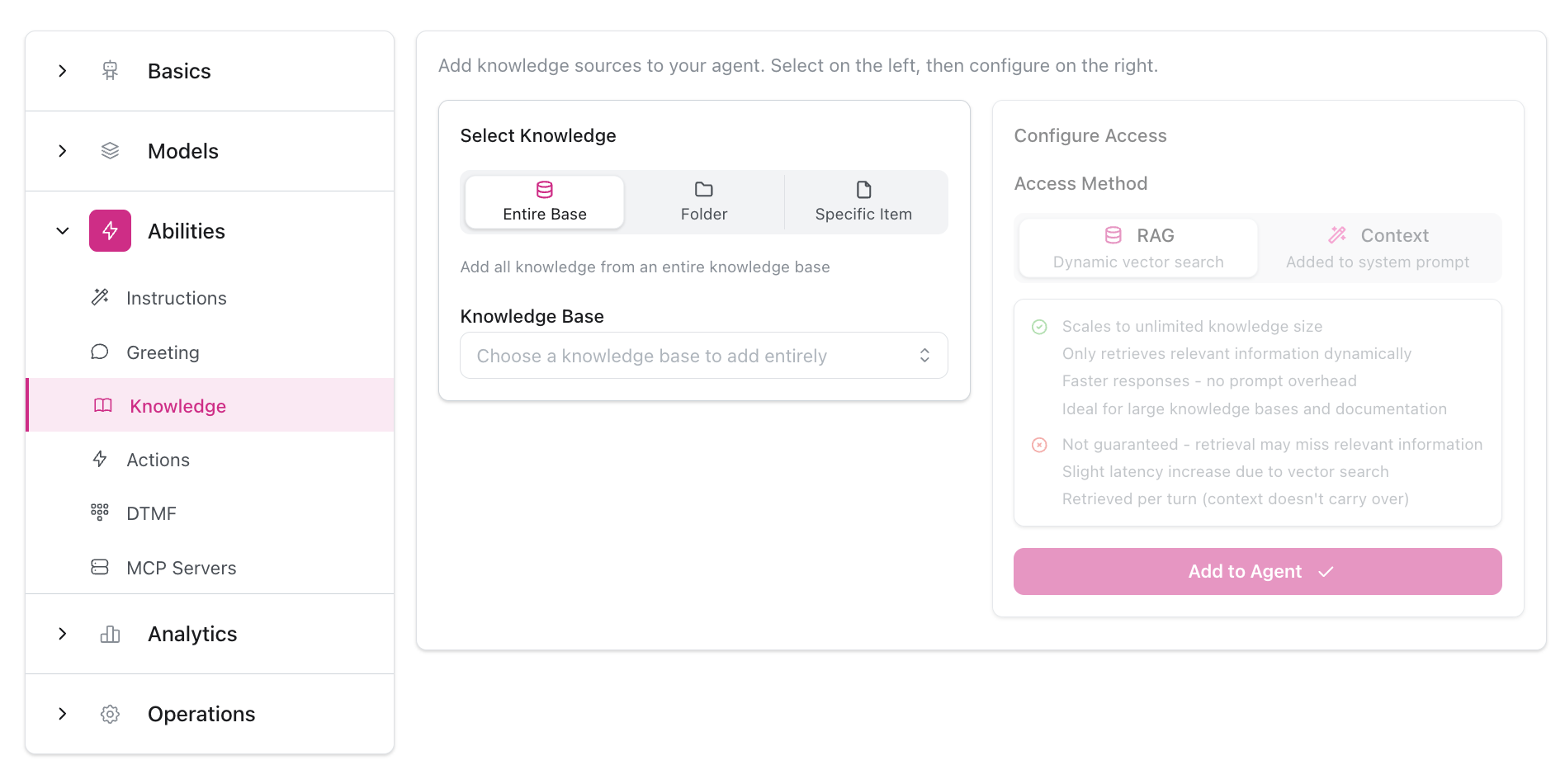
Knowledge Access configuration showing Select Knowledge options (Entire Base, Folder, Specific Item), Knowledge Base dropdown, and Configure Access panel with RAG vs Context mode selection and detailed explanations
Learn more about Knowledge →

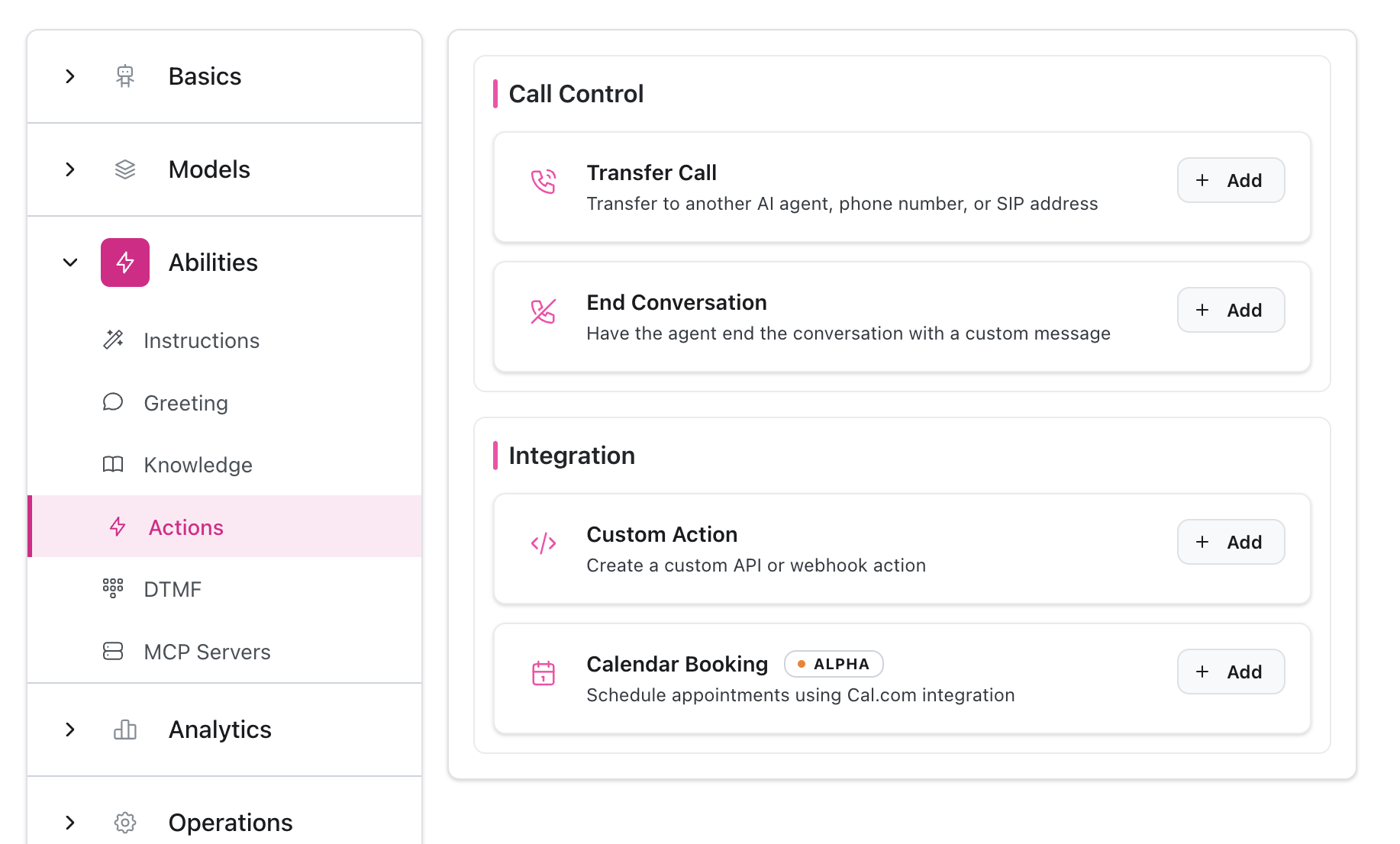
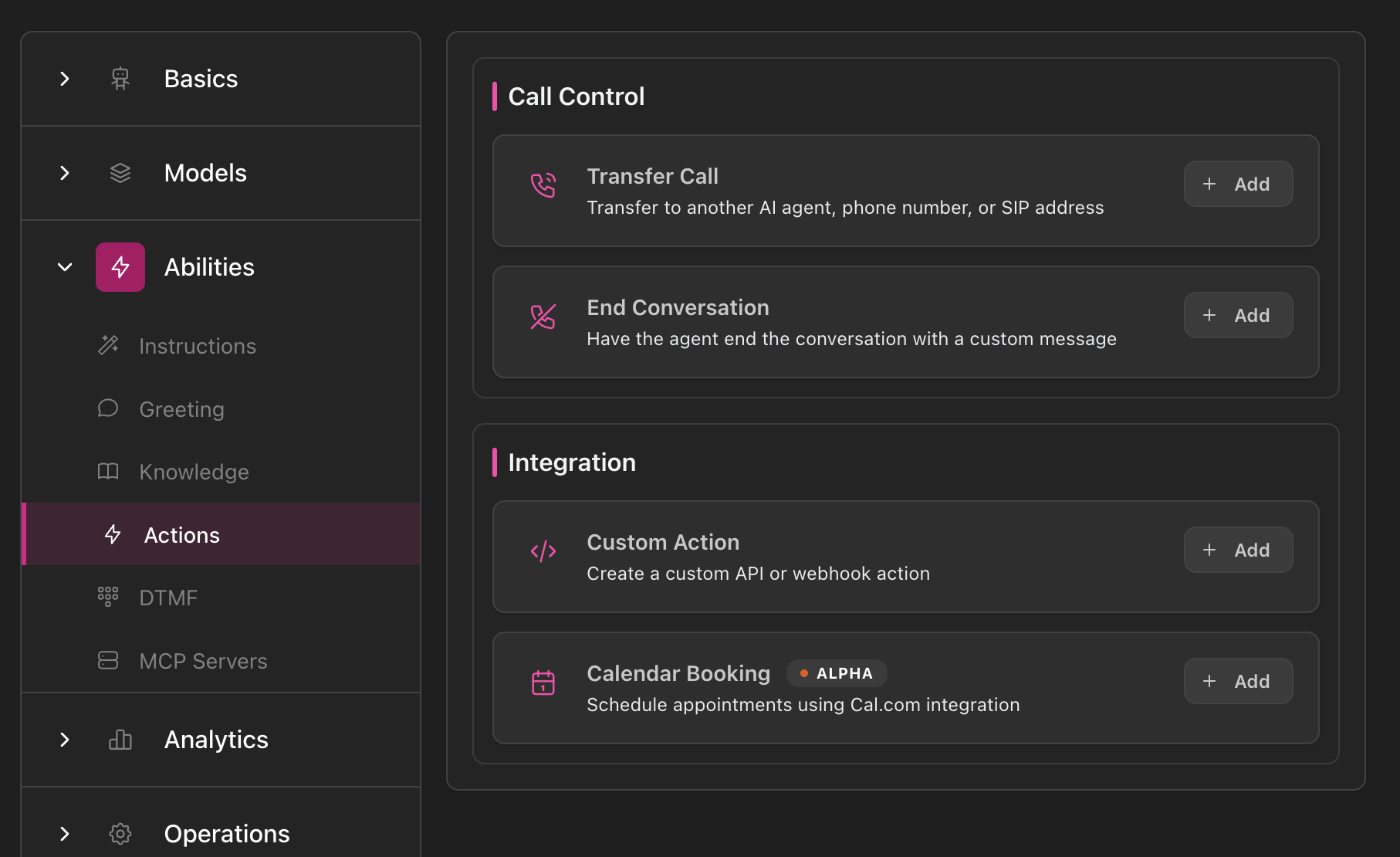
Actions & Integrations

Enable your agent to take real actions.
  • Transfer calls (agent, phone, SIP)
  • End conversations
  • Smart booking (Cal.com)
  • Custom API actions
Actions overview page showing Call Control section (Transfer Call, End Conversation) and Integration section (Custom Action, Calendar Booking) with Add buttons for each action type
Learn more about Actions →

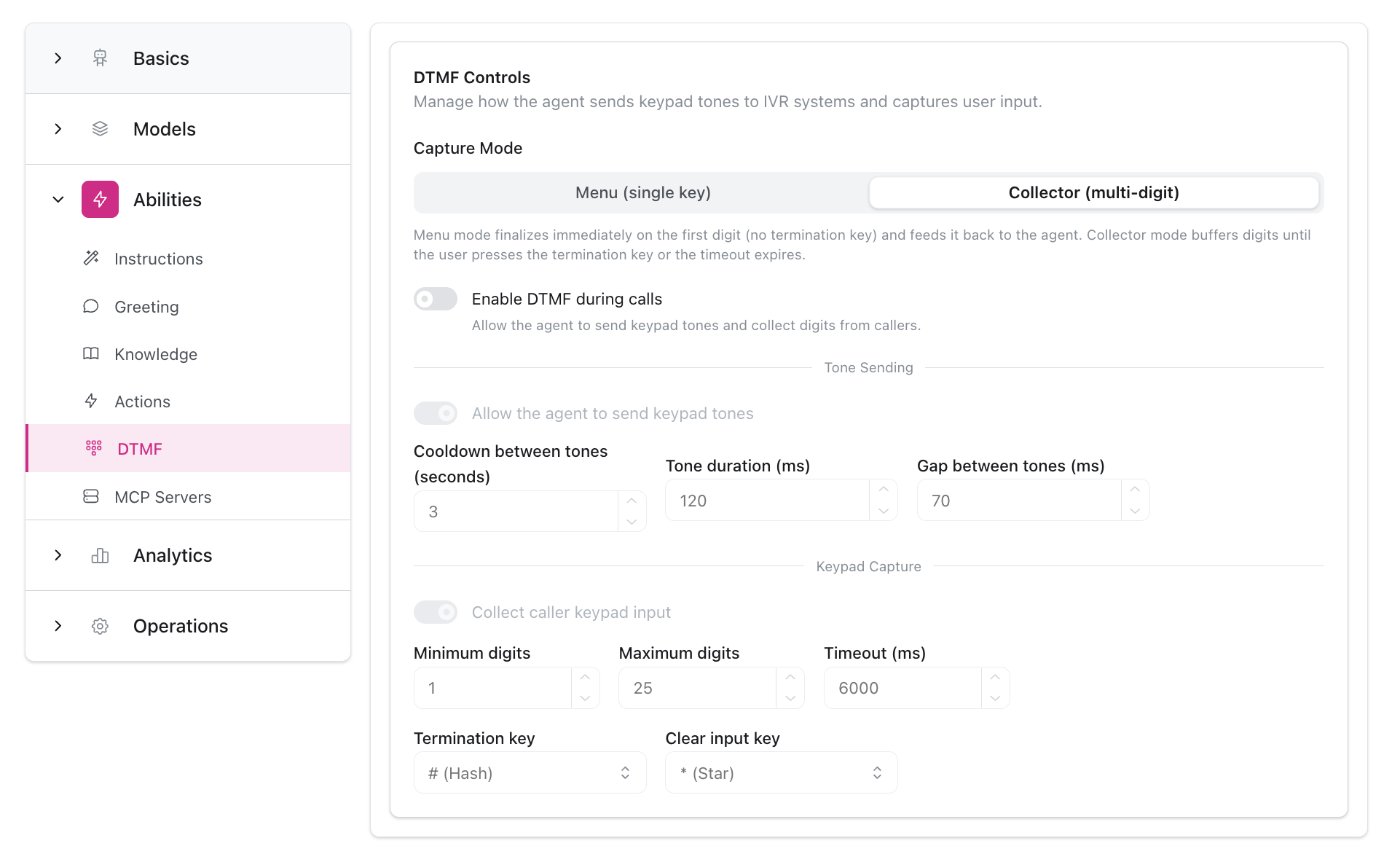
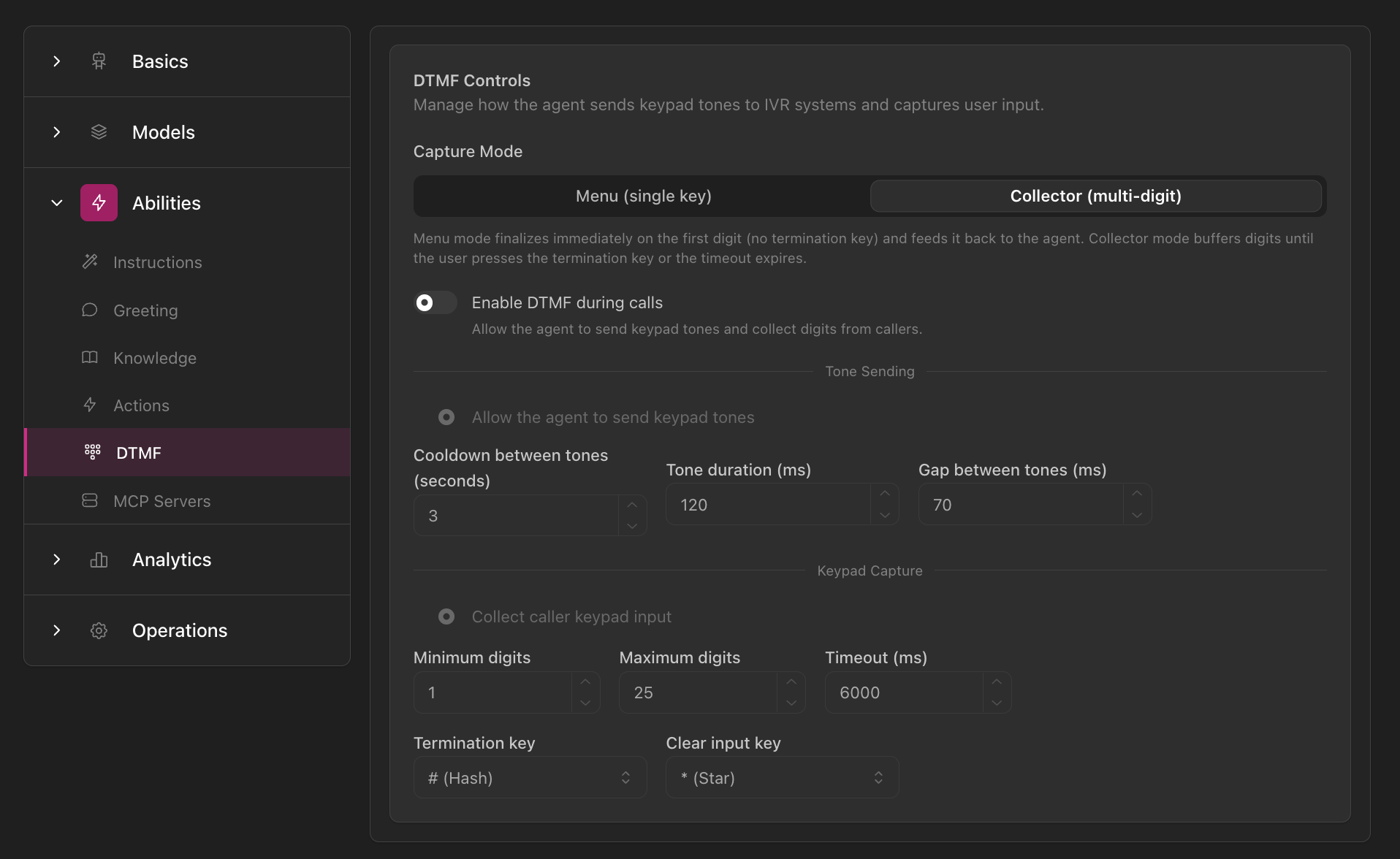
DTMF Controls

Configure keypad input handling.
  • Menu mode (single key) or Collector mode (multi-digit)
  • Tone sending configuration
  • Capture and emit settings
DTMF Controls configuration showing Capture Mode options (Menu vs Collector), Enable DTMF toggle, Collector parameters (cooldown, timeout, gap), Send tone settings with digit limits and timeout, and key configuration options
Learn more about DTMF →

Operations Tab

Fine-tune operational behavior and conversation mechanics.

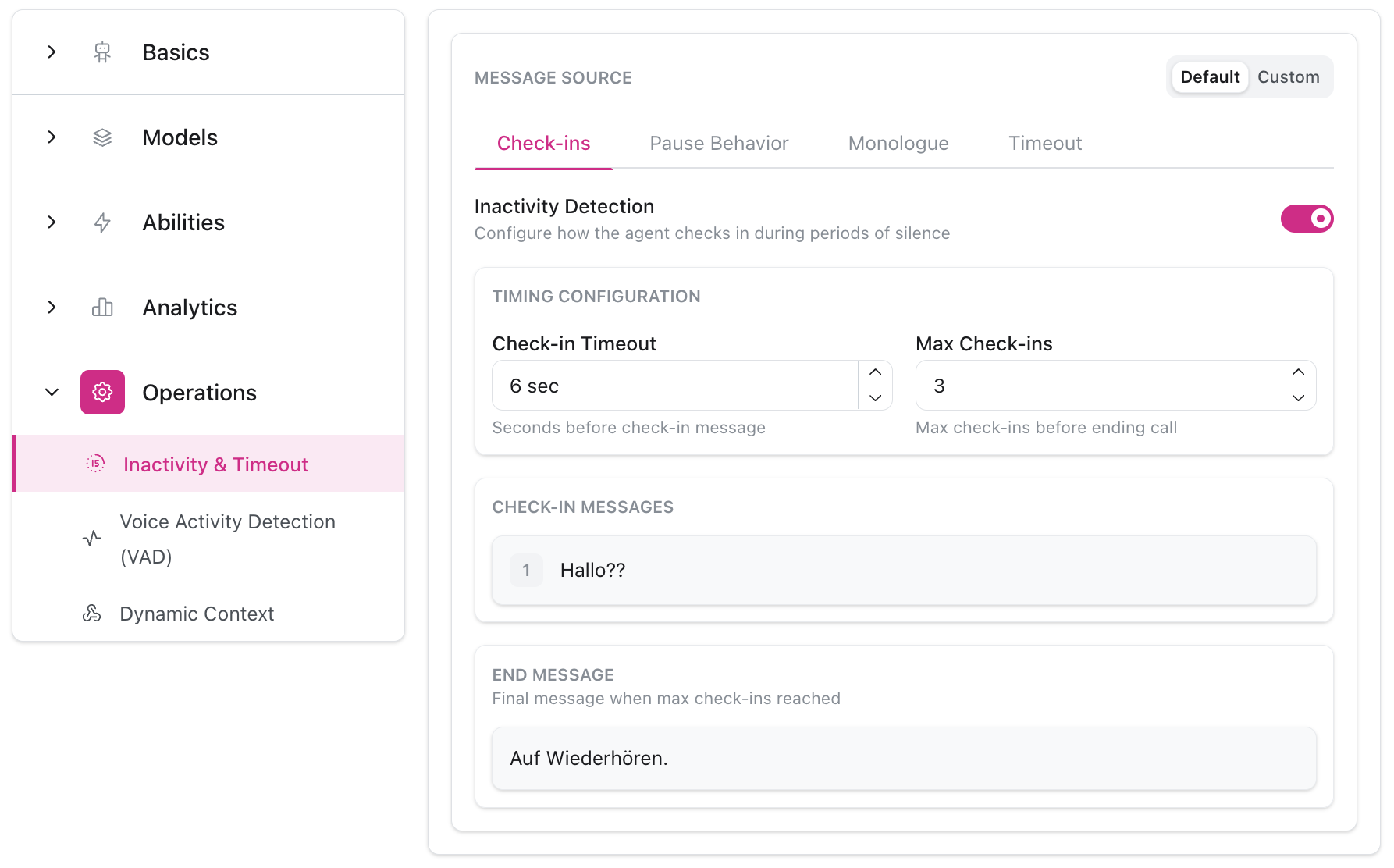
Inactivity & Timeout

Handle silence and inactive customers.
  • Check-in/reminder cadence
  • Custom timeout messages
  • Inactivity actions
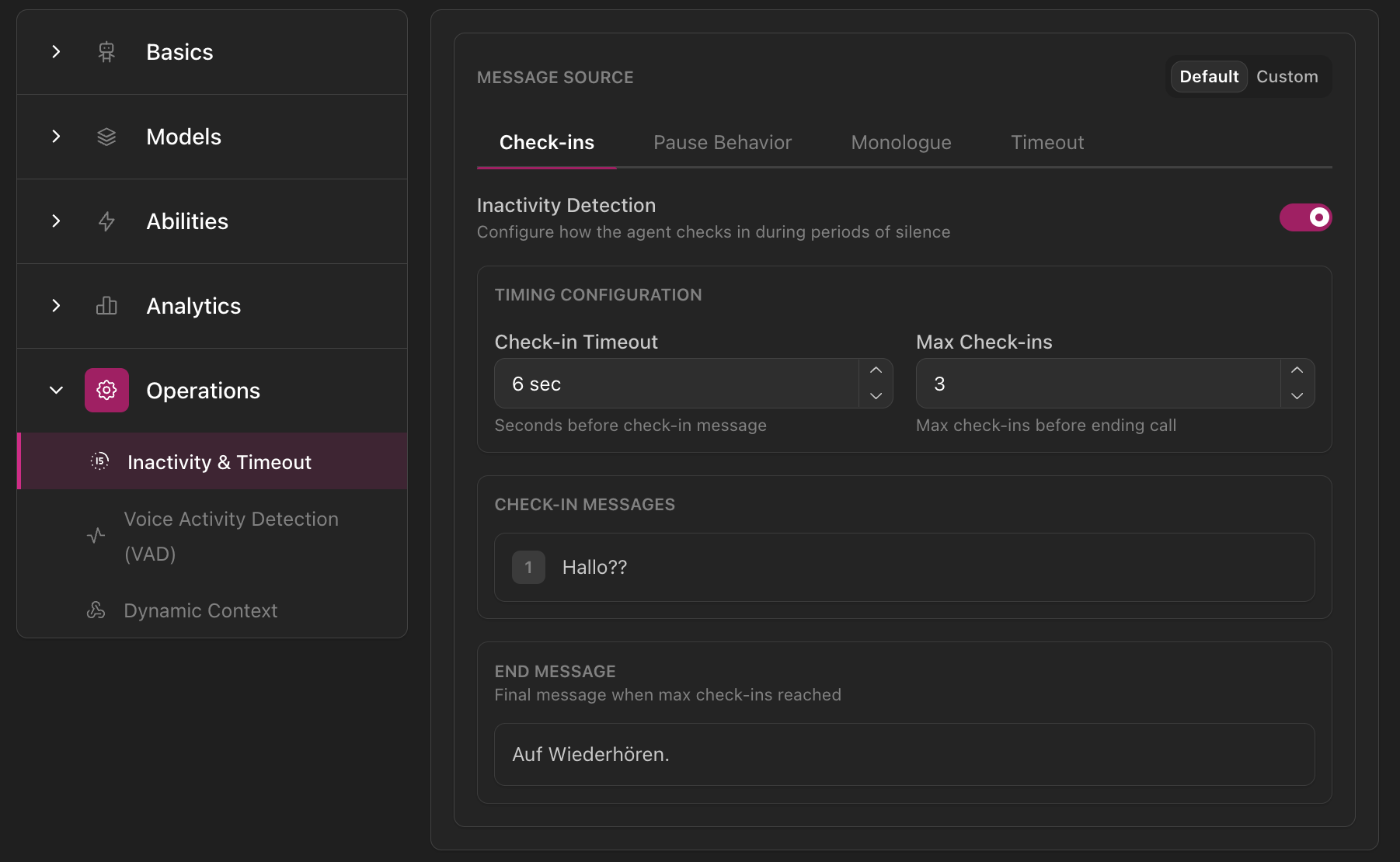
Inactivity & Timeout configuration showing MESSAGE SOURCE tabs (Check-ins, Pause Behavior, Monologue, Timeout), Inactivity Detection toggle, timing configuration with check-in timeout and max check-ins, check-in messages, and end message settings
Learn more about Inactivity →

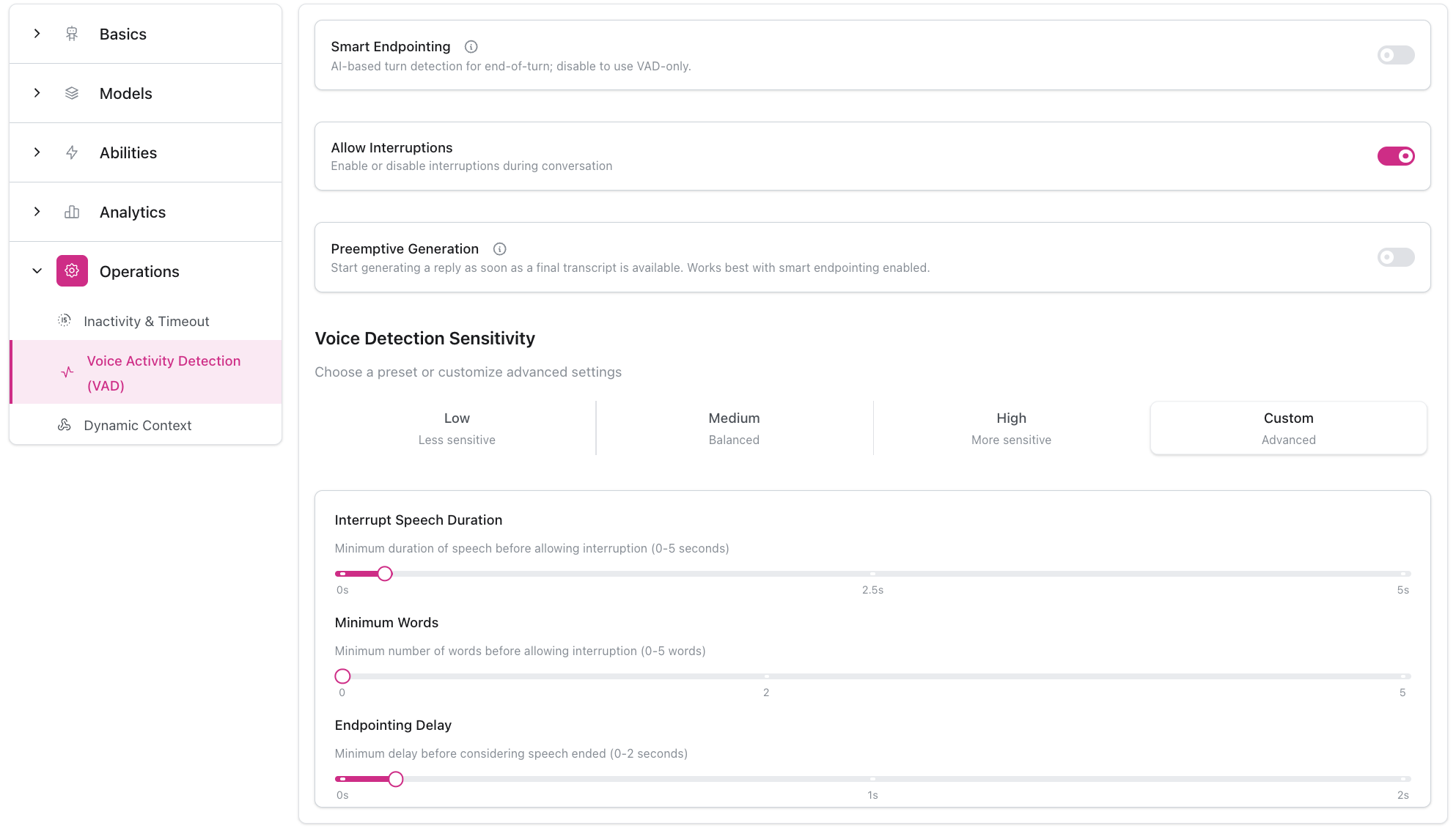
Voice Activity Detection (VAD)

Control when your agent speaks and listens.
  • Preset modes (Low, Medium, High) or Custom
  • Interruption handling
  • Endpointing delay configuration
  • Smart endpointing toggle
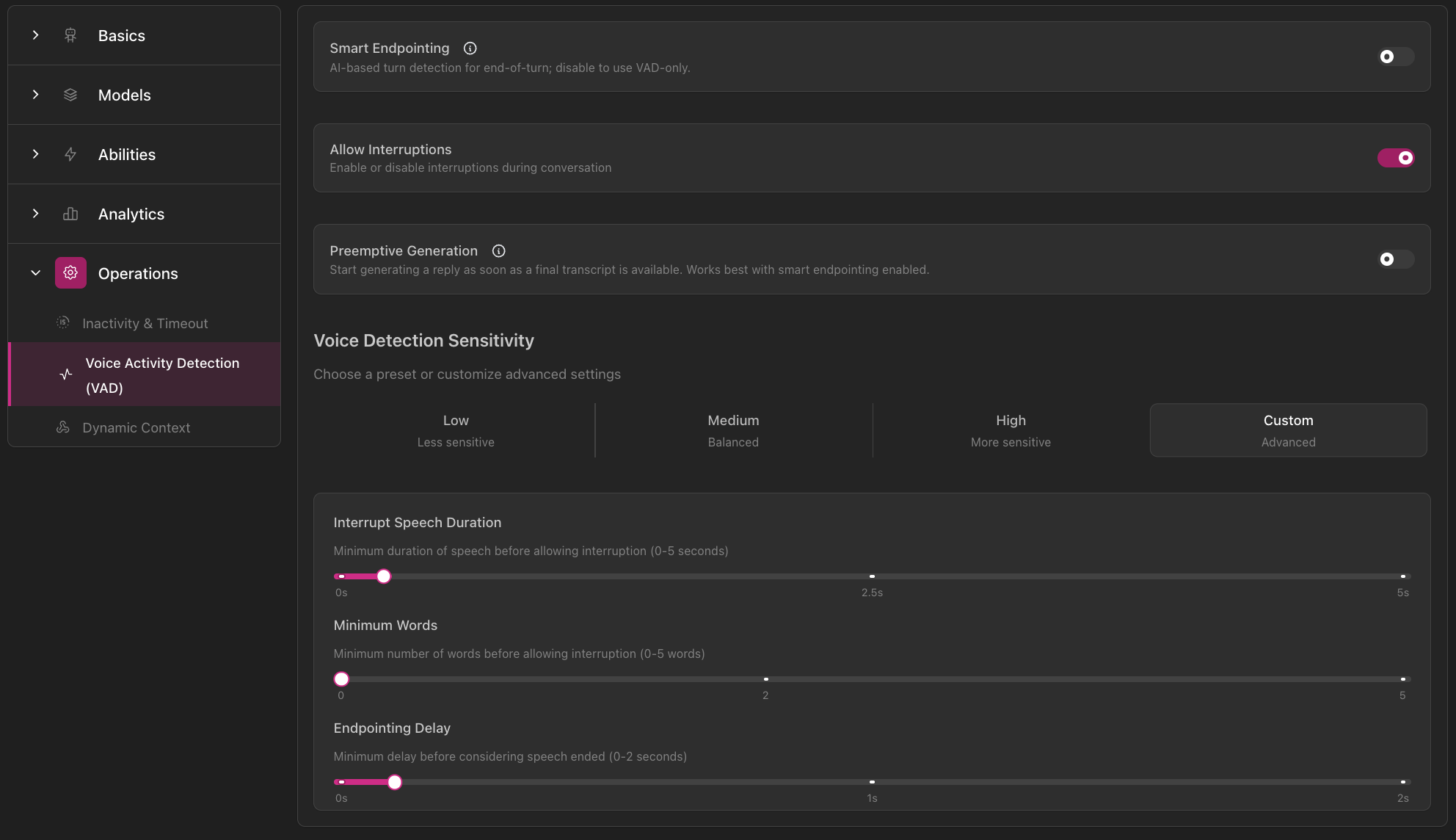
Voice Activity Detection configuration showing Smart Endpointing toggle, Allow Interruptions toggle, Preemptive Generation option, Voice Detection Sensitivity presets (Low, Medium, High, Custom), and advanced settings with sliders for interrupt speech duration, minimum words, and endpointing delay
Learn more about VAD →

Dynamic Context

Fetch personalized data before conversations.
  • Context endpoint configuration
  • Authentication setup
  • Test request functionality
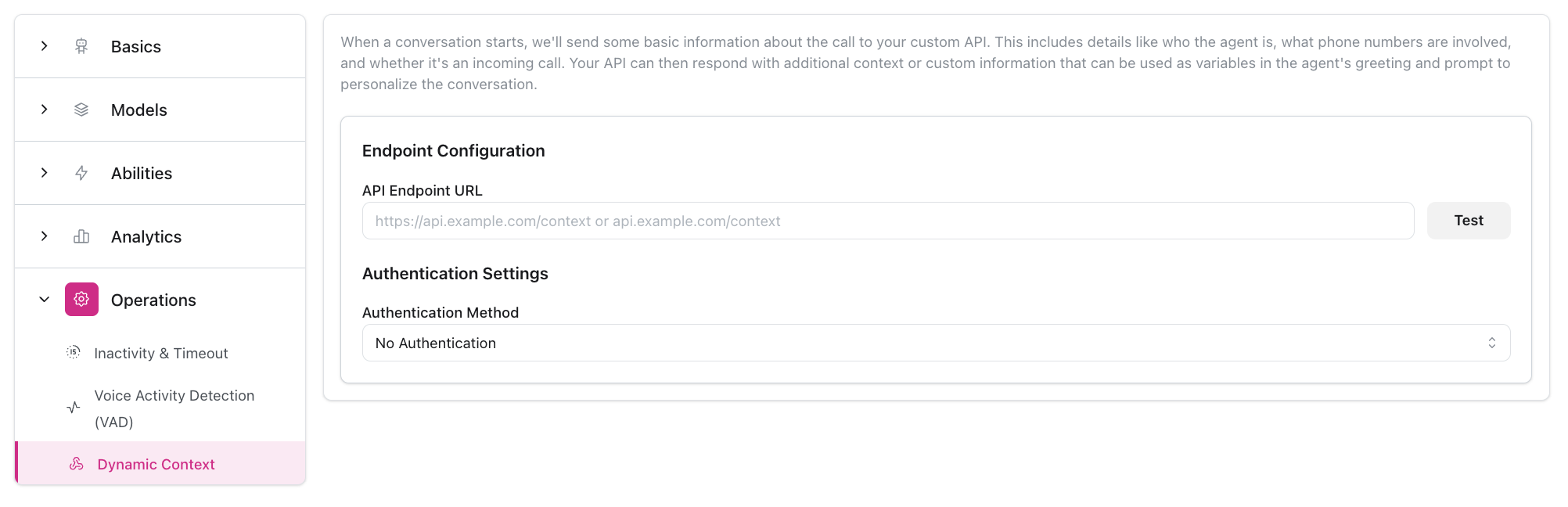
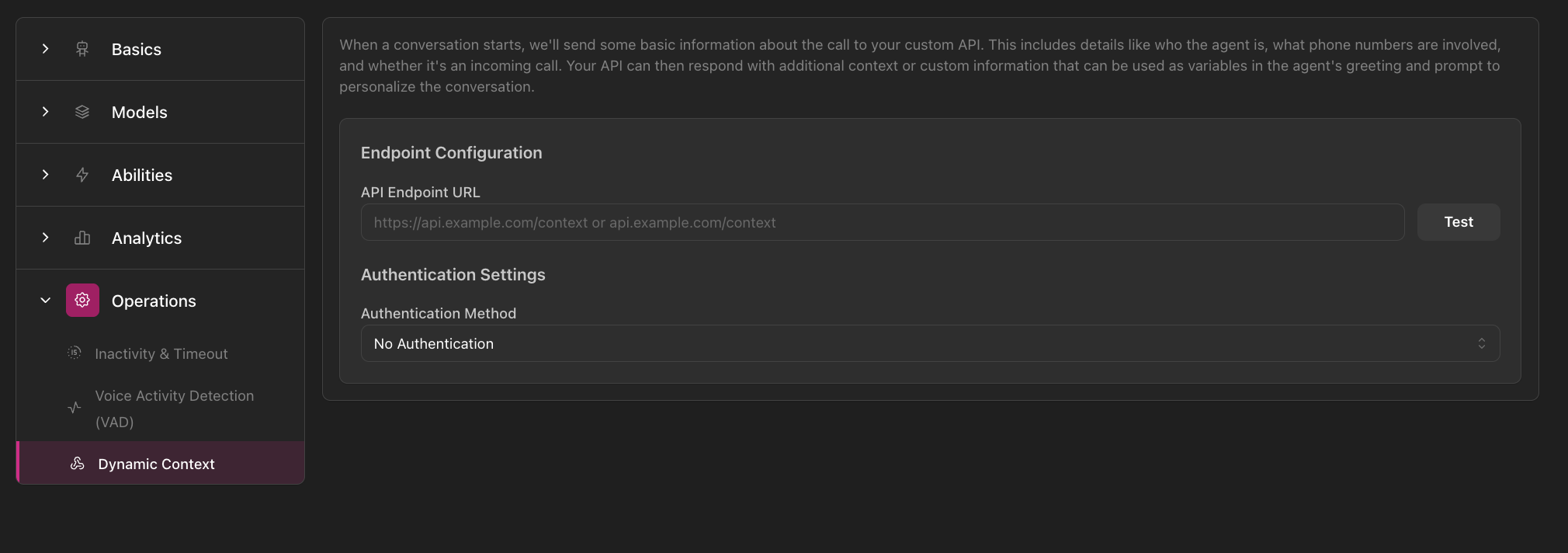
Dynamic Context configuration showing navigation sidebar with Operations section expanded, Endpoint Configuration with API Endpoint URL field and Test button, and Authentication Settings with Authentication Method dropdown
Learn more about Dynamic Context →

Analytics Tab

Configure conversation measurement and success tracking.

Goals

Define what success looks like.
  • Primary and secondary goals
  • Goal types and criteria
  • Performance tracking
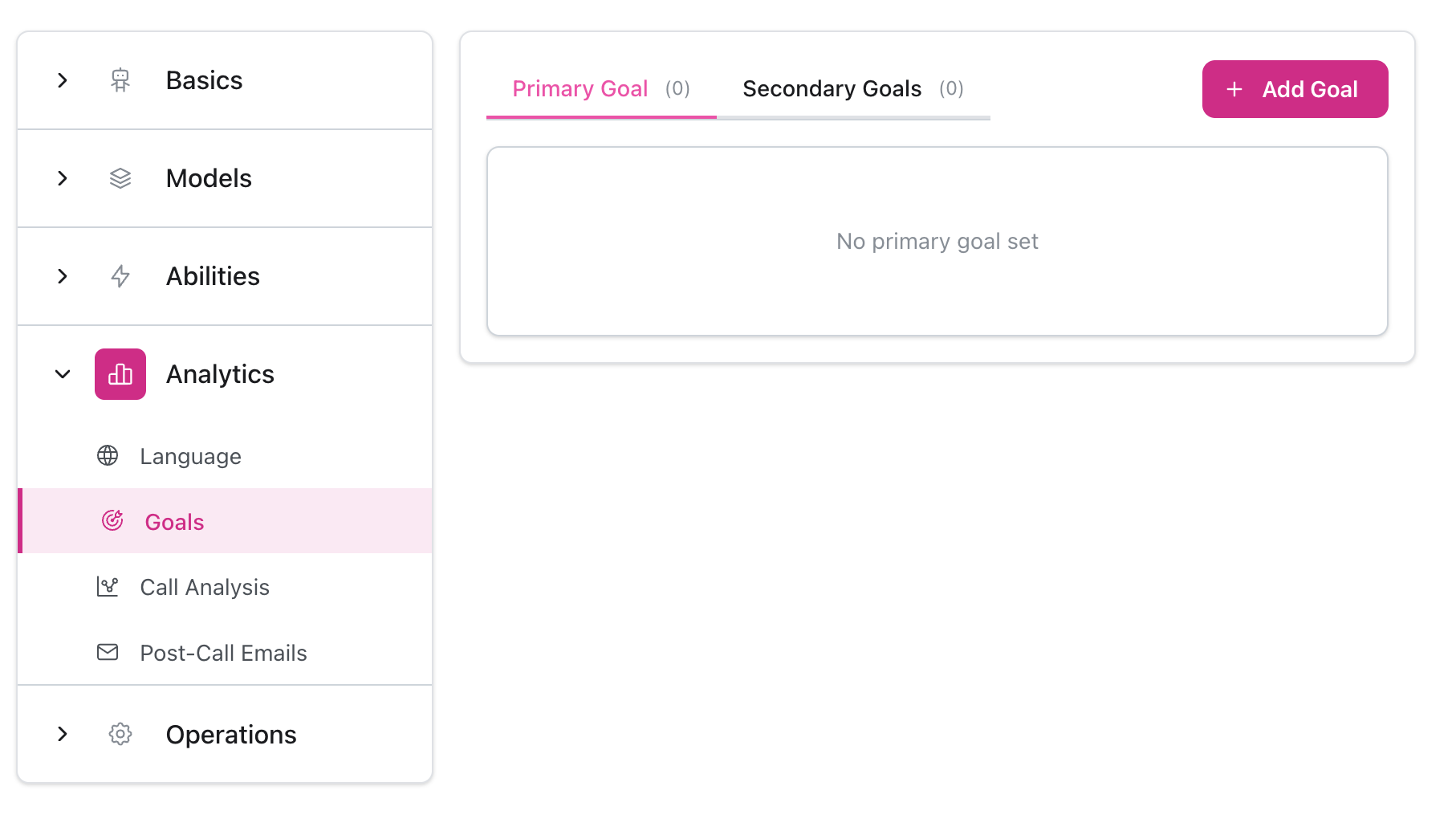
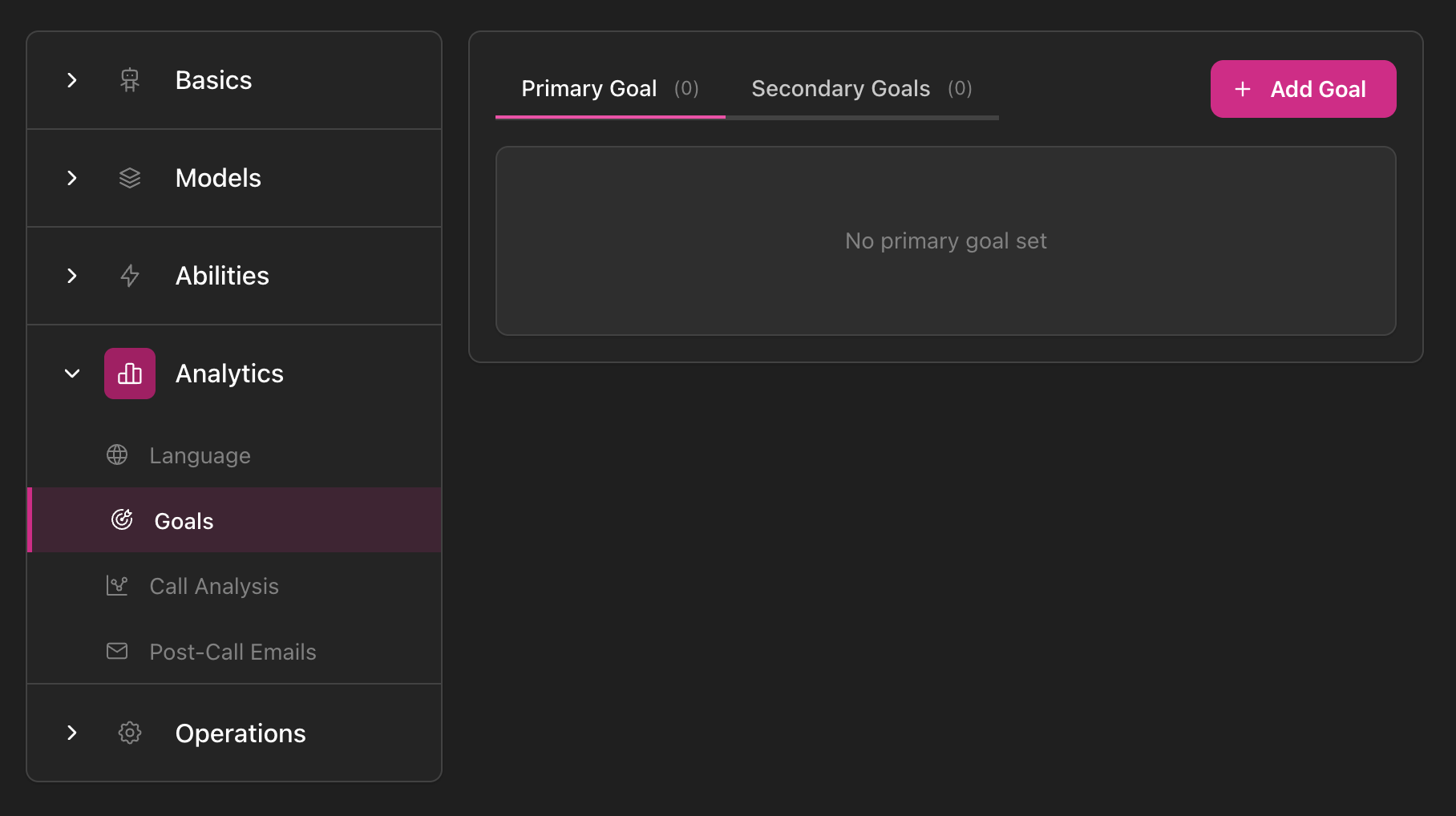
Goals configuration showing navigation sidebar with Analytics section expanded and Goals selected, Primary Goal and Secondary Goals tabs with Add Goal button, and empty state message 'No primary goal set'
Learn more about Goals →

Post-Call Analysis

Configure automated conversation analysis.
  • Extract structured information
  • Analysis criteria
  • Rating systems
  • Performance metrics
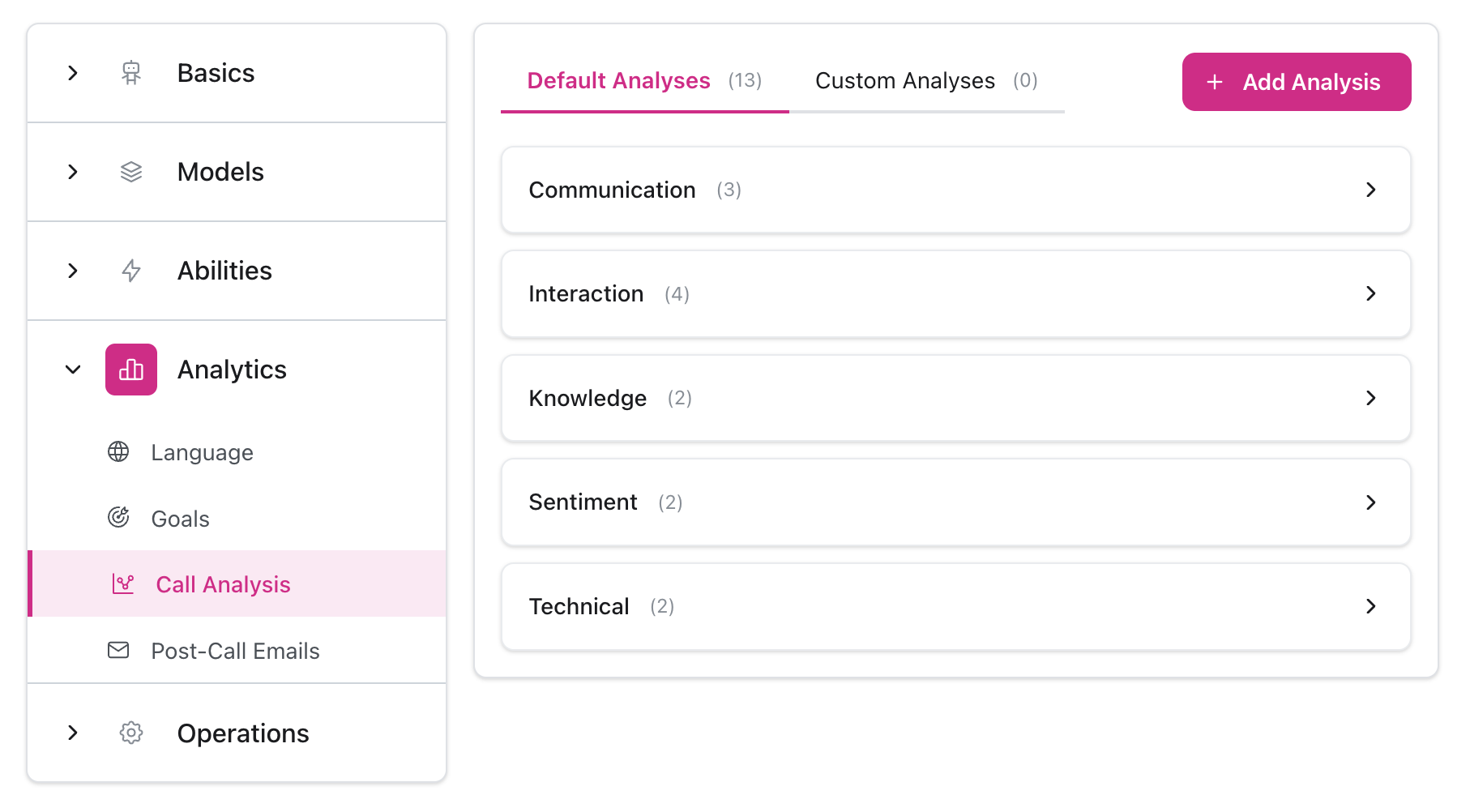
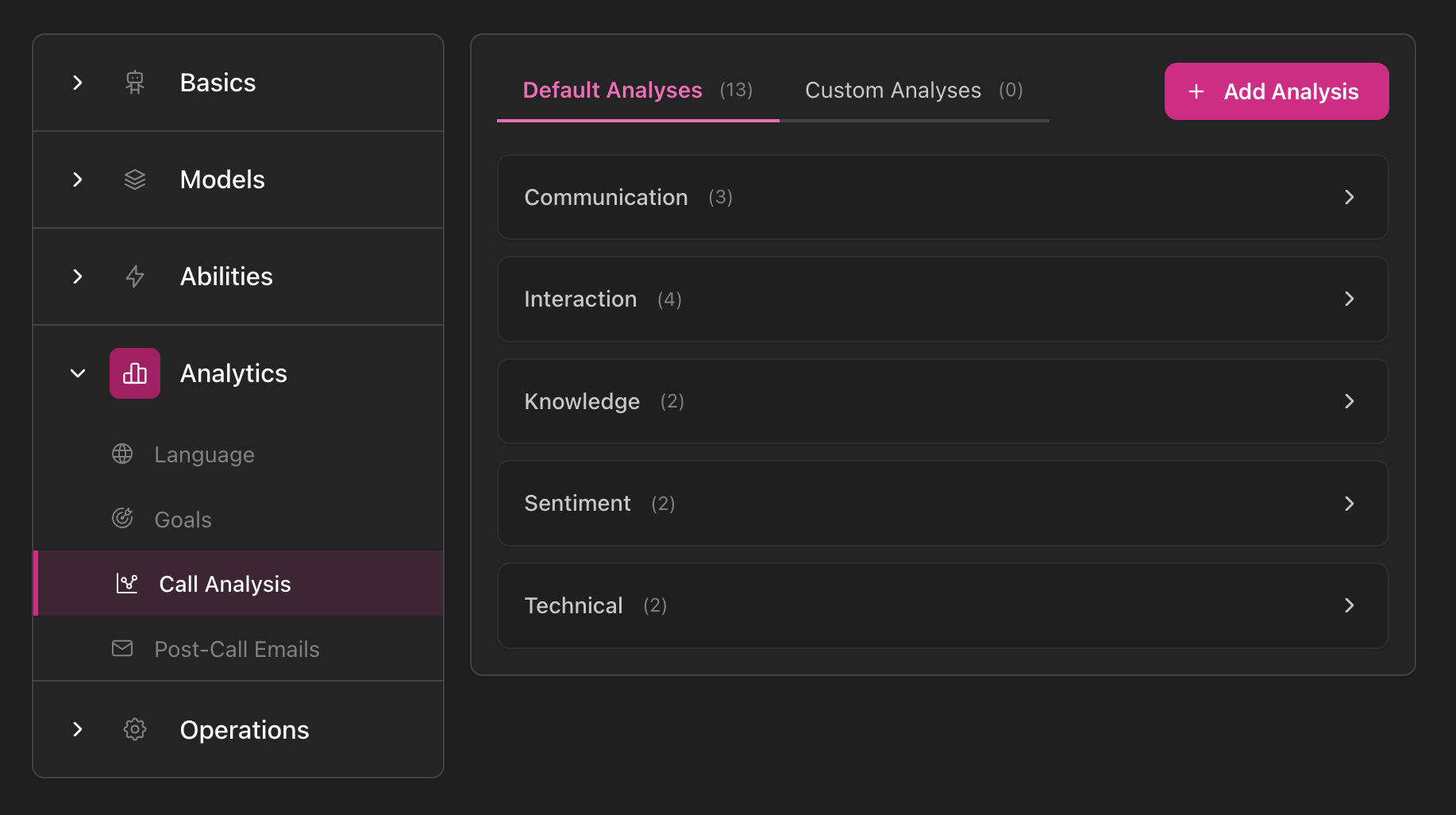
Call Analysis configuration showing navigation sidebar with Analytics section expanded and Call Analysis selected, Default Analyses and Custom Analyses tabs with Add Analysis button, and categories including Communication, Interaction, Knowledge, Sentiment, and Technical with item counts
Learn more in Optimize →

Using the Configuration Panel

1

Configure Models

Select AI model, voice, and transcriber
2

Set Up Abilities

Configure instructions, greetings, and knowledge
3

Fine-tune Operations

Adjust VAD and timeout settings after testing
4

Set Up Analytics

Define goals for measurement

Save Behavior

Some sections (like model selection) save automatically. Others require clicking the Save button. Changes apply to future calls only, not calls in progress.

Next Steps